QUICK START · NATIVE MAC DESKTOP APP
Use a Brady M211
with your Mac.
Prepare a label at your desk, check the layout, and connect to your M211 over Bluetooth. This guide describes the current pre-release version of VDK LabelCraft.
- An Apple silicon Mac with macOS 15 or later.
- A Brady M211 printer and a compatible M21 cartridge.
- Bluetooth enabled and macOS permission for LabelCraft.
The current launch does not include Intel Mac, Windows, iPhone, or iPad versions. Other Brady printer models are not supported.
1. Choose the cartridge in the app
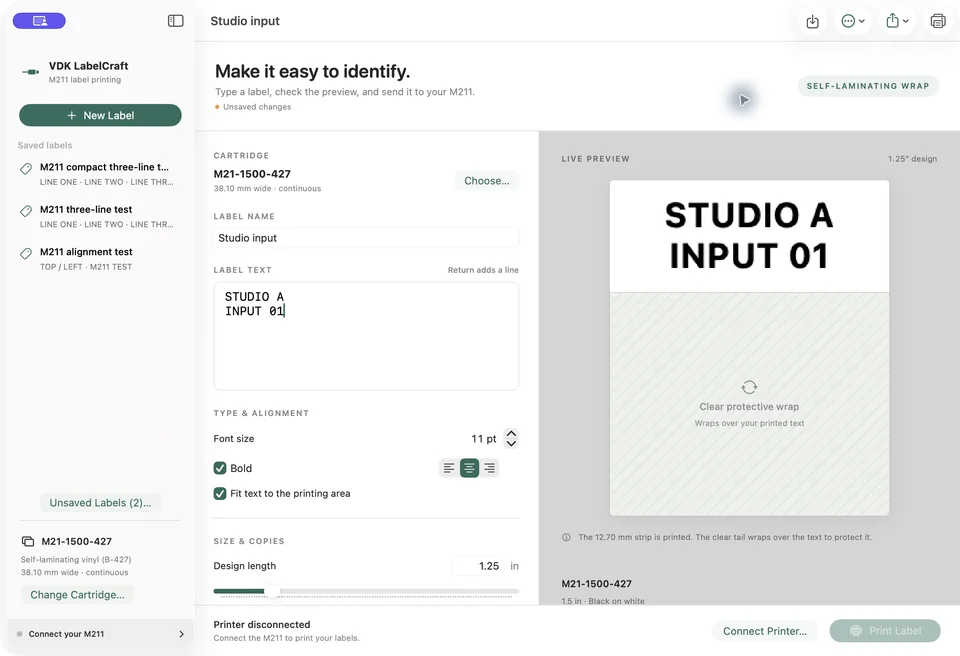
Open Choose Cartridge or Change Cartridge. Search by part number, material, or size. Select the exact stock you intend to load. A saved design remembers this choice.
2. Design the printable area
Enter a name and label text. Return adds a line. Adjust size, bold, alignment, and automatic fitting. Continuous stock offers an adjustable design length and Fit Length to Text; pre-sized stock uses its fixed dimensions.
The hatched area on self-laminating profiles represents the clear protective tail. It is a layout guide and is not printed. The design length is not a guarantee of the final physical cut length.
3. Find and connect the M211
- Turn on the printer and close other apps that may be using it.
- In LabelCraft, choose Printer → Find M211.
- Allow Bluetooth access when macOS asks, select the printer, and connect.
- Check the detected cartridge. Use Loaded Cartridge can switch your design to the installed stock.
4. Check one physical label
Open Help → Printer Setup & Calibration. Print one test label and check placement, orientation, readable type, and cutting before increasing copies. Adjust placement for that printer and cartridge if needed.
If another app owns the connection
Close the other app. Hold the M211 power button for five seconds until the blue Bluetooth light blinks, then reconnect from LabelCraft. If a print result is uncertain, inspect the actual output before attempting another label.
Save and export
Save to the local label library with ⌘S. Export PNG artwork or a physical-size PDF guide. Library & Backups exports editable designs as JSON; keep copies of files you want to move or archive.